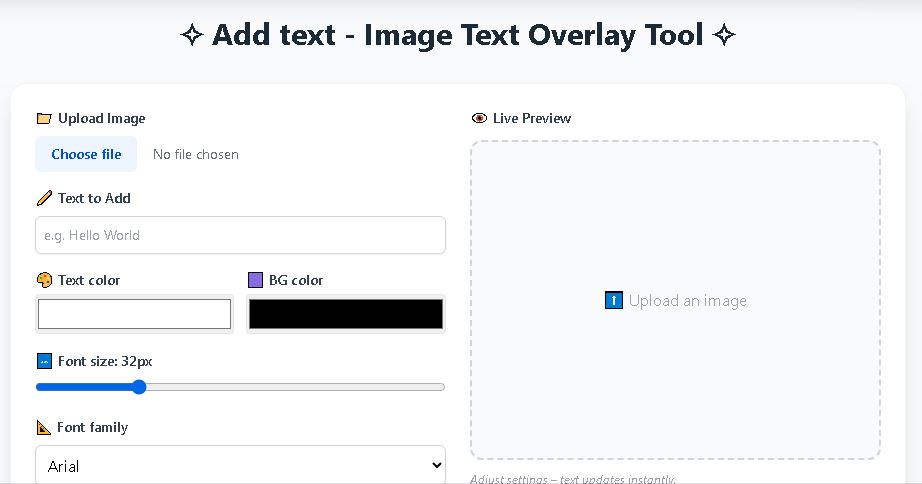
✧ Add text – Image Text Overlay Tool ✧
⬆️ Upload an image
Adjust settings – text updates instantly.
✨ Why Use Finance ToolBajar’s Add Text‑Image Text Overlay?
Adding text to images has become a daily necessity for creators, marketers, educators, and business owners. Whether you want to craft eye‑catching social media posts, design watermarked product photos, or annotate instructional diagrams, a reliable add text to photo online tool saves time and eliminates the need for expensive software. Finance ToolBajar’s free image text overlay runs completely in your browser – no uploads to a server, no watermarks, and no registration required. You get full control over typography, color, and placement, with the result downloaded instantly as a high‑quality PNG.
🚀 Key Features at a Glance
- Live preview – every adjustment to text, color, font, or position is reflected in real time.
- 9 precise positions from top‑left to bottom‑right, plus a perfect center alignment.
- Custom background box – add a solid or transparent background behind your text for readability.
- Six popular fonts – Arial, Times New Roman, Courier New, Georgia, Verdana, and Impact.
- High‑resolution download using html2canvas – output matches your original image dimensions.
- 100% client‑side processing – your image never leaves your device, keeping your data private.
🧩 Step‑by‑Step: How to Add Text to a Photo
- Click “Upload Image” and select any JPG, PNG, or WebP file from your device.
- Type your desired caption, title, or watermark into the “Text to Add” field.
- Pick a text color using the color picker, and optionally set a background color behind the text (the default is fully transparent).
- Adjust the font size slider and choose a font family that matches your branding.
- Click any of the nine position buttons to place the overlay – from “Center” for a classic watermark to “Bottom Right” for a subtle caption.
- Hit the “Download Image” button – your edited image will be saved as a PNG file instantly.
Pro tip: For transparent watermarks, set the text color to white with a low opacity or use a semi‑transparent background. Our tool doesn’t support opacity directly, but you can approximate it by using light gray text (#cccccc) on a dark photo.
🖼️ When to Use a Dedicated Text Overlay Tool
While you can open an image in Paint or Preview and type text manually, a purpose‑built add text to image online tool streamlines the process. It is especially useful when you need consistency across multiple images, want to experiment with different placements instantly, or are working on a device without dedicated image editing software. For instance, social media managers often need to add uniform captions to a batch of photos – a task that becomes tedious with traditional editors but is simplified with a web‑based tool.
🔍 Comparing Online Tools: Watermarkly and Visual Watermark
Our tool is perfect for single‑image overlays, but if you need advanced batch processing or professional watermarking, consider exploring alternatives. Watermarkly’s add text to photo service, for example, offers a sleek drag‑and‑drop interface that lets you apply text, logos, and watermarks to multiple images at once. It supports effects like shadow and rotation, and you can even process an entire folder without uploading files to a server. Similarly, Visual Watermark’s add text to photos tool is designed for photographers and e‑commerce businesses who need to protect hundreds of product images quickly. It includes templates, EXIF data insertion, and a robust preview mode that ensures your text placement is consistent across all selected photos.
Both Watermarkly and Visual Watermark excel at bulk watermarking – something our free tool intentionally leaves out to keep the experience lightweight and instantaneous. If your workflow demands text overlays on 50+ images at once, those platforms are worth checking out. For quick, one‑off edits, however, Finance ToolBajar’s solution remains the fastest and most privacy‑friendly choice.
🛠️ Why Browser‑Based Tools Beat Installed Software
Browser‑based image text overlay applications have several advantages over desktop programs like Photoshop or GIMP. They require no installation, work across Windows, macOS, Linux, and mobile devices, and are often free of charge. Our tool, in particular, uses the html2canvas library to capture the preview exactly as you see it, ensuring WYSIWYG output without any hidden rendering quirks. Additionally, because all processing happens locally on your device via JavaScript, your original image never travels over the internet – a significant privacy benefit for sensitive documents or personal photos.
🎨 Tips for Professional Text Placement
- Contrast is key. Choose a text color that stands out against the background, or use a semi‑opaque background box to ensure legibility.
- Mind the safe zone. Avoid placing text too close to the edges, especially if the image will be cropped or displayed in a frame.
- Use a consistent font. Stick to one or two font families throughout a series to maintain a cohesive brand identity.
- Test different positions. The center position works well for watermarks, while bottom‑right is ideal for subtle signatures or copyright notices.
- Add a shadow effect. Though not built in, you can simulate a drop shadow by duplicating the text layer (not available here) or by selecting a dark background color that mimics a shadow.
📱 Adding Text to Images on Mobile
Our tool is fully responsive – it works seamlessly on smartphones and tablets. You can upload a photo from your camera roll, type your text with the on‑screen keyboard, and adjust the font size and position using touch. Once satisfied, tap “Download Image” to save the edited version directly to your device’s photo gallery. This makes it perfect for social media creators who need to quickly add a quote or meme text while on the go.
❔ Frequently Asked Questions
1. Can I use custom fonts from my computer?
Currently we support six web‑safe fonts that render consistently across all browsers. If you need a unique typeface, consider using a desktop tool like Watermarkly or Visual Watermark, which allow custom font uploads. We’re always looking to expand our font library – send us your suggestions!
2. Will the downloaded image be high resolution?
Yes. The download uses the original image dimensions and the text is rendered at screen quality (the canvas is scaled by 1.5× for sharpness). For print, we recommend starting with an image at least 1200px wide.
3. Is there a limit on file size?
There is no artificial limit, but extremely large images (over 20 MB) might slow down the preview because the entire operation runs in your device’s memory.
4. Can I add multiple lines of text?
Yes! Type your text with line breaks (press Enter or paste multi‑line content) – the overlay will wrap automatically. You can also use the background box to frame each line distinctly.
5. Does Finance ToolBajar store my images?
Never. All editing happens locally in your browser. Once you close the tab, everything is cleared. We value your privacy above all else.
6. How is this different from Watermarkly or Visual Watermark?
Our tool is optimized for quick, single‑image edits with zero registration. Watermarkly and Visual Watermark are designed for batch processing and advanced watermarking – they support features like EXIF‑based text, rotation, and template saving. If you need to watermark hundreds of photos, they’re excellent choices. For a fast, privacy‑first overlay, stick with us.
7. Can I remove the text after adding it?
This tool overlays text directly onto the image preview and flattens it during download. To edit, simply change the text input and the preview updates. If you need a non‑destructive workflow, consider using a tool that saves project files, but our goal is simplicity.
⚠️ Disclaimer
Finance ToolBajar provides this image text overlay tool “as is” without any warranty. While we strive for accuracy and reliability, we are not responsible for any loss of data or image quality degradation. The tool is intended for personal and commercial use, but users are responsible for ensuring they have the rights to modify and download any uploaded images. No image data is transmitted to our servers – all operations are client‑side.
© 2026 Finance ToolBajar. All rights reserved. The name “Finance ToolBajar” is used for identification purposes only.
Related Image Tools